
How do I add a pause or slow down my video?
Adding more narration between Sync Markers causes the video to wait — no separate pause control needed.
Tutorial AI doesn’t have a dedicated “pause” button. Instead, pauses are a natural result of how the system balances narration with video footage.
🎯 Looking to pause within or between sentences in the narration itself? The approach below is for pacing the video against the narration. To insert a short silence inside the narration — mid-sentence or between sentences — use an inline pause voice tag instead. See Voice Tags.
How it works
The video plays at a speed that keeps up with the narration between each pair of Sync Markers. If you have more to say than the video segment is long, the video will slow down or pause at the end of that segment until the narration catches up before moving to the next marker.
This means you can add a pause — or extend a slow section — simply by inserting more text.
How to add a pause
- In your narration script, place your cursor between the two Sync Markers where you want the video to wait

- Type the additional sentences or paragraph you want the narrator to say
- Push the next Sync Marker forward to the sentence that follows your new text
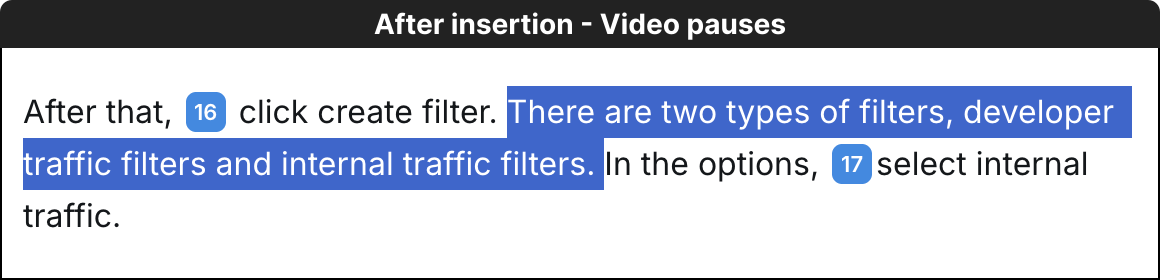
The video will now hold on that frame for as long as it takes to narrate your inserted text before continuing.
Tip
If you want a silent pause — a moment where the video holds without any narration — simply add a sentence like a brief transitional phrase, or create a custom Sync Marker to pin the exact frame you want to hold on.