
How do I hide the recording controls while I record?
The play controls only appear in the Chrome Extension — collapse them with the left-arrow icon so they stay out of your tutorial.
When you record with the Chrome Extension, a small floating toolbar with the stop, pause, timer, restart, and discard controls sits on your screen during the recording. If you’re capturing the whole tab or window, that toolbar gets captured into the footage too.
You can collapse it any time — click the left-arrow (<) icon at the far left of the toolbar and the controls shrink to a tiny pill that stays out of the way until you need to pause or stop.
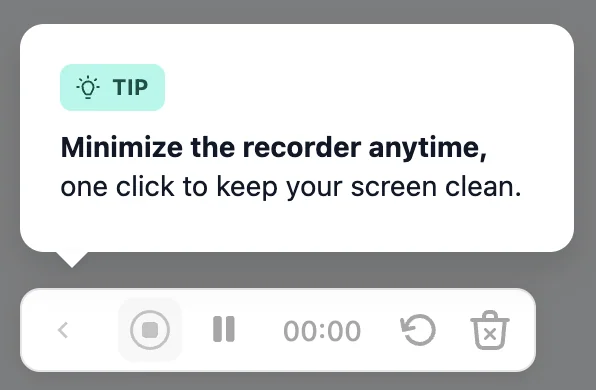
Click the arrow again at any point to re-expand the toolbar and stop or pause the recording.
⚠️ Do this at the very start of the recording. Anything captured while the toolbar was visible stays in the footage — there’s no way to hide the controls retroactively after the recording is finished. Minimize first, then start the part of the screen you want to record.
Using the Desktop Recorder? You’re already covered.
The Desktop Recorder doesn’t show any in-screen controls during recording — there’s nothing to minimize, and nothing ends up in the captured footage. If you’re producing polished tutorials and want a fully clean canvas, the Desktop Recorder is the recommended path. See Desktop Recorder vs Chrome Extension for the full comparison.