
Where can I find my original screen recordings?
Every screen recording you make is saved in the Screen recordings tab in the Tutorial AI app — replay it or start a new project from any raw recording.
Every screen recording you make with Tutorial AI — whether you used the Chrome extension, the desktop app, the mobile recorder, or uploaded a video — is stored as a separate file in the Screen recordings tab inside the app. Your original, un-narrated recording is always preserved there, even after you turn it into a project.
Find your recordings
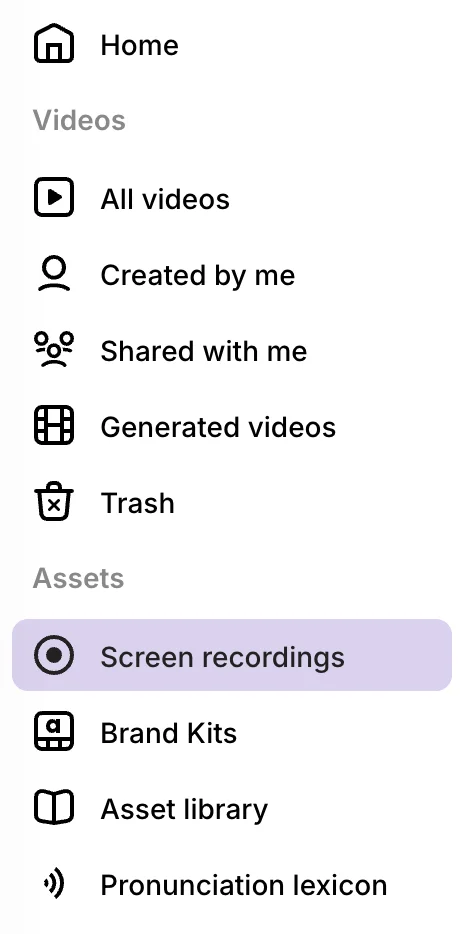
In the left sidebar, under Assets, click Screen recordings. You’ll see every recording you’ve made or uploaded, with the newest at the top.
From this view you can:
- Replay any recording in your browser
- Start a new project from any recording — see Create a new project from an existing recording
- Delete recordings you no longer need
A recording vs. a project
These are two distinct things:
- A recording is the raw screen capture — exactly what was captured on screen, with your original audio if you spoke during the recording. It lives in the Screen recordings tab.
- A project is the edited tutorial built on top of a recording — with AI narration, zooms, cuts, captions, music, and an editable script. It lives in your main dashboard.
When you record your screen, both are created automatically. Deleting a project does not delete the underlying recording, so you can always go back to the Screen recordings tab and start a fresh project from the same original source.