
How do I add a video clip to a tutorial?
Drop the extra footage onto a slide and place it between sections of your recording — Tutorial AI treats slide videos as first-class scenes.
When you want to extend a tutorial with extra footage — a webcam intro, a B-roll clip, a second screen capture, or a closing recording — the cleanest path is to add a slide and put the video on the slide. The slide acts as a scene you can position anywhere in your script, so the new clip plays as part of the tutorial alongside your original recording.
The workflow
-
Upload the clip to your Asset Library. Open the Asset Library from the left navigation in the dashboard and use Upload media. You can also upload directly from a slide’s top toolbar — click the video button → Upload media. See Uploading videos for the full flow.
-
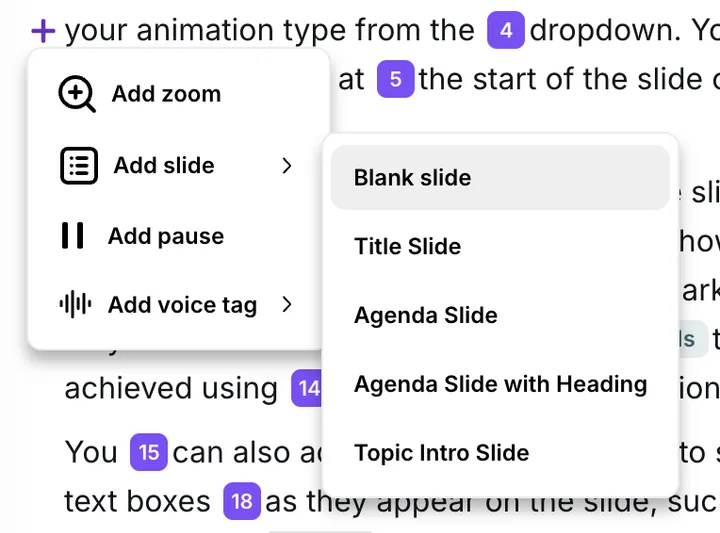
Add a slide where you want the clip to play. In your narration script, position your cursor where the clip should appear. Click the + button on the left, then choose Add slide → Blank slide.
- Drop the video onto the slide. With the slide selected, open the Video tab in the top toolbar and pick the clip from your Asset Library. Choose Full screen to make the clip fill the slide, or Split screen to keep it alongside other content.
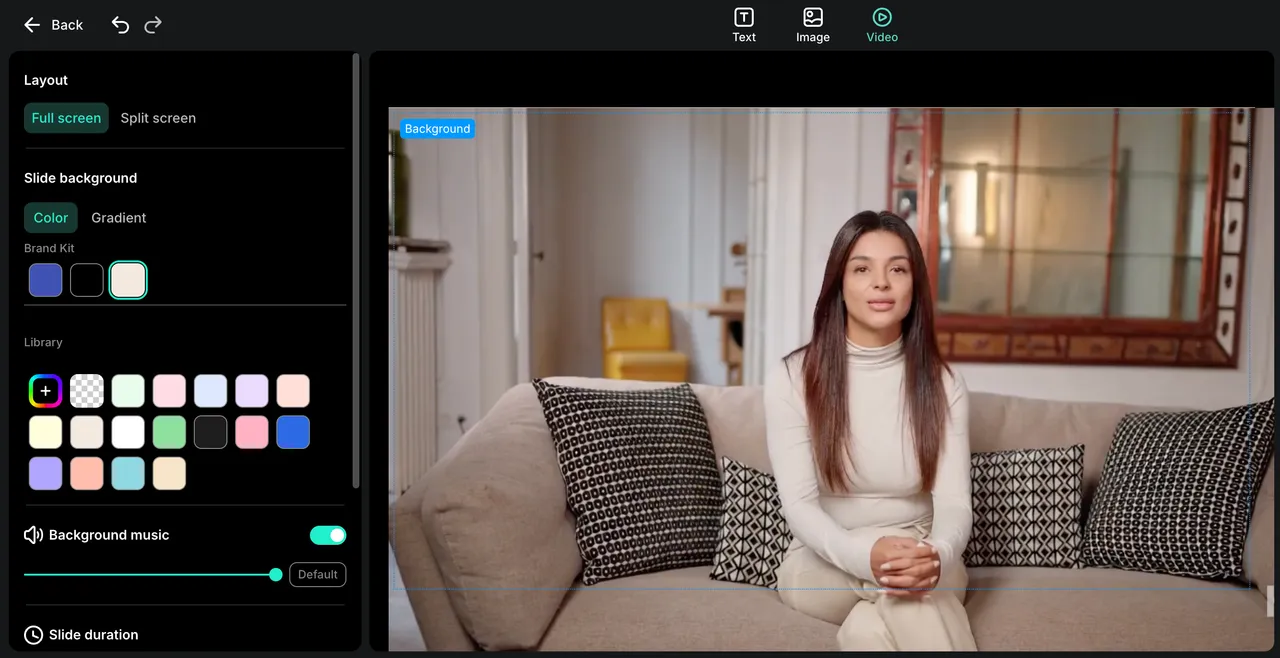
- Adjust the timing. The slide’s duration controls how long the clip plays. Write narration for the slide if you want the AI narrator to talk over it, or leave it silent to let the clip’s own audio carry the moment.
When to use this
- Webcam intro or sign-off — a personal hello before the screen recording kicks in, or a thank-you at the end.
- Inserting B-roll — a short product shot, a UI animation, or any non-recording footage you want mid-tutorial.
- Splicing in a second screen recording — record the extra steps separately, upload the file as a clip, and drop it onto a slide between the relevant sections of your main recording.
💡 Want a whole new project from the same recording instead? If the extra footage is really a separate tutorial topic, you can spin up a fresh project from any existing recording — see Create a new project from an existing recording.
Tips
- Match the canvas. Resize the clip to fill the slide if you want it to feel like the recording — or leave a margin and a background color for a framed-overlay look.
- Let the clip’s own audio play. If the clip has narration you want to keep, mute the AI narrator on that slide so the two don’t compete.
- Reuse across projects. Anything in the Asset Library is available in every project, so a webcam intro you recorded once can be dropped into any future tutorial.