
Upload Custom Fonts
Use static and variable custom fonts in your slides and brand kits.
💡 Custom Fonts are available on the Team and Enterprise plans.
Upload your brand’s fonts into Tutorial AI’s Asset Library and they become available everywhere you can pick a font — in your slides and in your brand kits. Both static font families (a separate file per weight or style) and variable fonts (multiple weights and styles in one file) are supported.
Supported formats
The Asset Library accepts four industry-standard font formats:
- WOFF — Web Open Font Format, suitable for web and mobile use.
- TTF — TrueType Font, widely used across operating systems.
- OTF — OpenType Font, extensive glyph support.
- WOFF2 — an improved version of WOFF, recommended for efficiency and compatibility.
Use WOFF2 whenever you have the choice — it renders identically to the others but loads faster.
Uploading static fonts
Static fonts arrive as separate files, one per weight or style (Regular, Bold, Italic, and so on). Upload the whole family in one go so every variant appears grouped in font pickers.
- Open the Asset Library from the left-hand menu and navigate to the Fonts section.
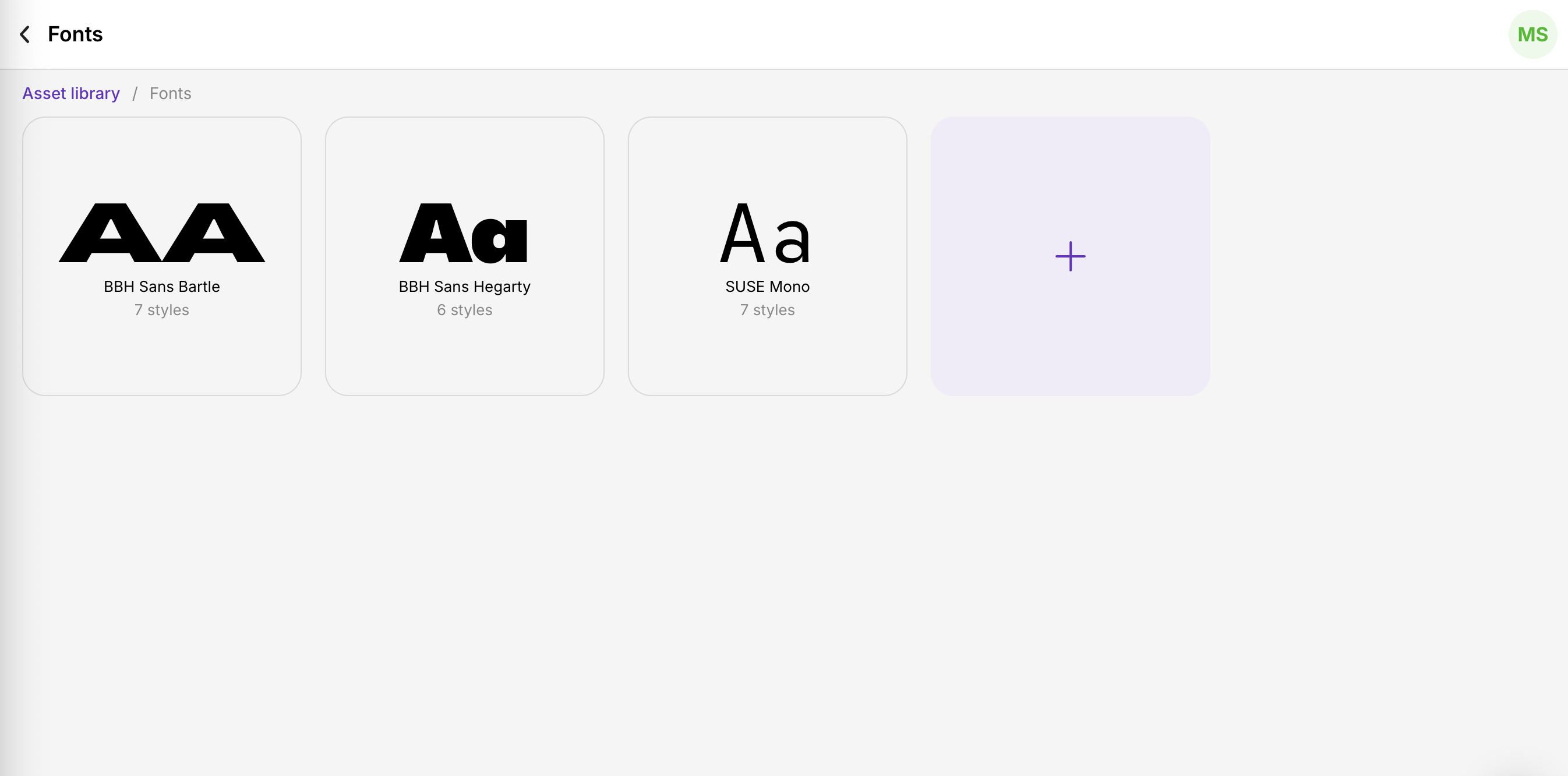
- Click the + icon to start the upload.
- Select every font file that belongs to the same typeface — one for each weight and style you want available.
- Enter the display name exactly as you want it to appear in font selection menus. Font filenames themselves are not shown.
- Click Upload to add the files, then Continue to finish.
Once processing completes, the font is available in brand kits and video slides.
Uploading variable fonts
A variable font is a single file that contains multiple weights and styles — you tune the appearance dynamically without uploading separate files.
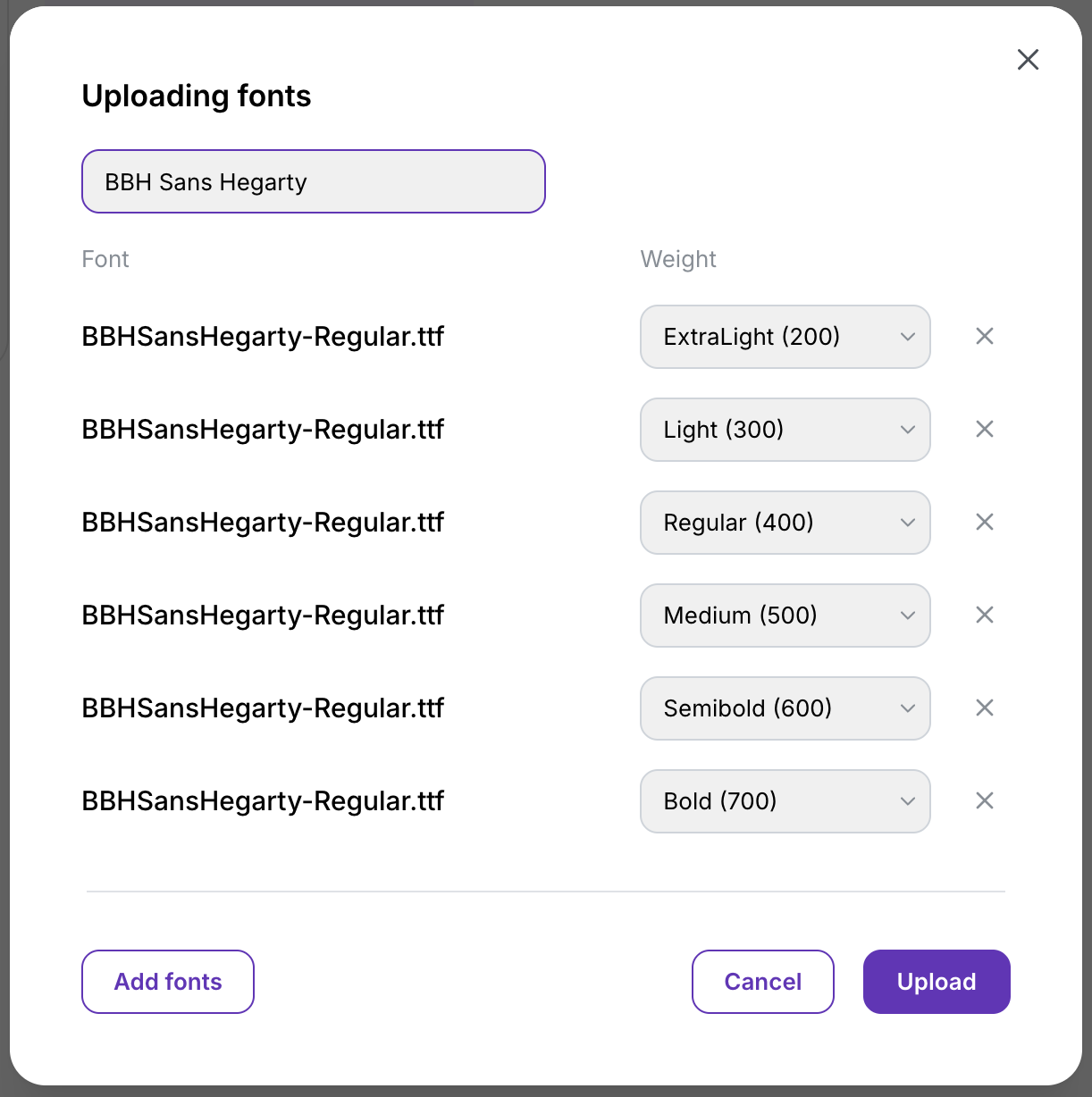
- Give the font a clear display name, exactly as you did for static fonts.
- Instead of uploading one file per weight, add the same variable file once for each weight or style you want to expose — and assign the specific weight or style to each entry.
- Click Upload when all variations are configured.
Using custom fonts
Once uploaded, your fonts appear in every font picker across Tutorial AI — brand kits, slide title text, callouts, captions. Your videos render with the exact fonts you’ve defined, keeping your branding consistent across every export.
Tips
- Display name over filename. Font filenames aren’t shown anywhere; the display name is what appears in every picker. Pick a name that matches how designers on your team refer to the font.
- Group by display name. Files uploaded under the same display name group into one family in the picker — so all your weights and styles appear together, not as separate fonts.
- Prefer WOFF2. When you have a choice of format, WOFF2 loads fastest and has the best cross-platform behavior.