If you’ve ever tried to email a large video file, you’ve probably run into the dreaded “attachment too large” error. The best way around this is to use a workaround like a cloud storage service or a dedicated file transfer tool. You simply upload your video to a service like Google Drive, Dropbox, or WeTransfer, and then paste a shareable link into your email.
This little trick bypasses the usual 25 MB email cap, letting your recipient download the full-quality video without any fuss.
Why Email Attachment Limits Get in Your Way
That “Attachment Too Large” error is more than just an annoyance—it’s a complete roadblock. Whether you’re a marketer trying to get feedback on a new ad or a team lead sharing a recorded presentation, it stops you cold. The problem is that email just wasn’t built to handle massive files.
Email providers like Gmail and Outlook have to manage a mind-boggling volume of messages every single day. To keep their systems from grinding to a halt, they set strict limits on attachment sizes. Think of it this way: trying to send a huge video file through email is like trying to shove a couch through a mail slot. It’s simply not the right tool for the job.
The Numbers Behind the Rejection
Let’s get specific. Most of the big email services, including Gmail, cap your entire email at 25 MB. That includes the text, any images, and all attachments combined. Microsoft Outlook is often even tighter, at just 20 MB.
What’s worse is that the encoding process for attachments can actually inflate a file’s size by as much as 33%. So that 19 MB video you thought was safe? It might get rejected. While you can look up the exact limits for different providers, the takeaway is always the same: direct attachments are a gamble for anything but the smallest video clips.
This simple flowchart lays out the best approach.
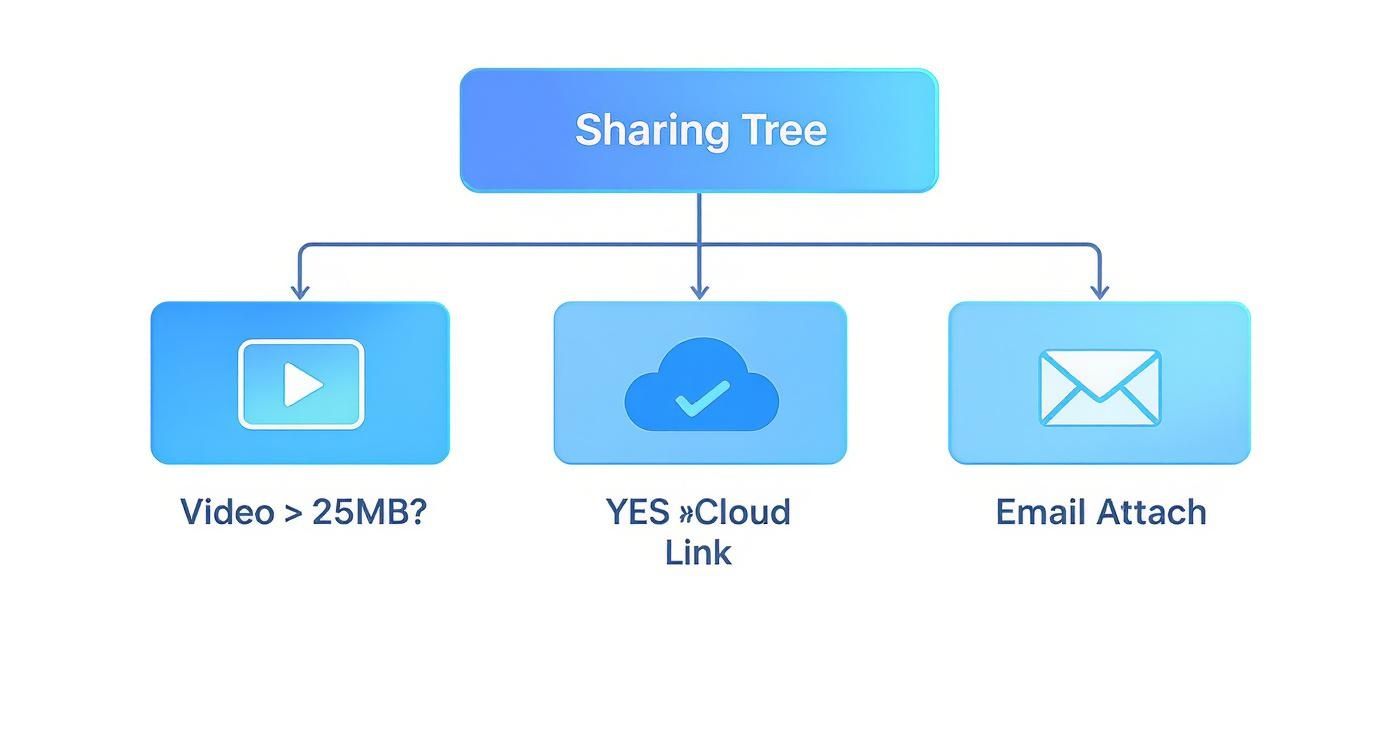
As you can see, once your video crosses that 25 MB threshold, switching to a cloud link is the only reliable path forward.
This isn’t just a technical problem; it’s a workflow killer. Relying on attachments for large files creates delays, frustrates everyone involved, and just looks unprofessional. The good news is that the modern solutions are simple, fast, and designed for how we actually share content today.
Your Quick Guide to Sending Large Videos
To make things even clearer, here’s a quick look at the best methods for sharing videos, their ideal use cases, and what to expect in terms of size and simplicity.
MethodBest ForTypical Size LimitEase of UseCloud Storage (Drive, Dropbox)Collaborating on files & long-term storage2 GB - 2 TB+Very EasyDedicated Transfer Service (WeTransfer)Quick, one-off sends to anyone2 GB - 200 GB+EasiestVideo CompressionSlightly reducing file size for attachmentsUp to ~25 MBModerateZipping/Splitting Files Sending multiple files or breaking one large fileDepends on recipient’s emailCan be complexThis table should help you pick the right tool for the job instantly. For most people sending videos over 25 MB, cloud storage or a dedicated transfer service is the way to go.
Use Cloud Storage for Effortless Sharing
Let’s be honest, the easiest way to get around email attachment limits is to stop attaching files in the first place. Instead, lean on the cloud storage services you probably already use, like Google Drive, Dropbox, or OneDrive. This moves the heavy lifting from your email provider to a platform actually designed for big files.
Think about it from a practical standpoint. You’re a marketer sending a new video ad to a client for review. Instead of the inevitable “your file is too large” bounce-back, you simply upload the video to a shared folder. Your client gets a clean link, their inbox isn’t clogged, and the project keeps moving. It’s just a smoother workflow for everyone involved.
Getting Your Link Ready to Share
The actual process is pretty much the same no matter which service you use. Just log in to your account and upload the video file from your computer.
For example, here’s what the Google Drive interface looks like. It’s a straightforward way to keep your files organized and ready to go.
Once the upload is complete, just right-click on the file and look for a “Share” or “Get link” option. This is where the magic happens.
Now for the most important part: setting the permissions. You have total control over who can access your file and what they can do with it.
Here’s a quick breakdown of the usual options:
- Viewer: This is your safest bet and the one you’ll use most often. People can watch and download the video, but they can’t mess with your original file.
- Commenter: Perfect for team projects. It lets people leave time-stamped notes or feedback directly on the video without actually changing it.
- Editor: Be careful with this one. It gives the recipient full power to edit, delete, or even re-share the file. I only use this for trusted collaborators on my immediate team.
After you’ve picked the right permission level, just copy the link. If you’re managing tons of large files regularly, it might be worth looking into dedicated cloud-based document management systems for more advanced strategies.
Why This Method Works So Well
This has become the standard way to send large videos because email clients are fully on board. Gmail and Outlook know their own systems have limits, so they’ve built features to make sharing cloud files seamless. If you’re a Gmail user, you can share Google Drive files up to 10 GB right from the compose window—it just inserts a link instead of trying to attach the actual file.
When you send a link instead of a file, you’re not just dodging a size limit—you’re keeping control. You can update the video file on your end without having to send a new email, or you can revoke access entirely if needed. This approach also preserves the video’s quality. You’re not squashing the file down to meet an arbitrary size limit, so your recipient sees it exactly as you intended. To make sure you’re starting with the best possible file, our guide on choosing the best video format for your needs can help.
From there, just paste the link into the body of your email, and you’re done. Your massive video is on its way without a single headache.
Use a Dedicated File Transfer Service
Sometimes, you need to send a massive video file to someone outside your immediate circle—a client, a contractor, or a partner. While cloud storage is fantastic for team collaboration, for a straightforward, one-time delivery, a dedicated file transfer service is often the cleaner, more professional route.
Services like WeTransfer, TransferXL, and Send Anywhere are purpose-built for one thing: getting your large file from point A to point B without any drama. You don’t have to fiddle with folder permissions or worry about adding clutter to someone else’s shared drive. It’s as simple as uploading your video, typing in their email, and clicking “send.”
When Transfer Services Beat Cloud Storage
Let’s say you’re a freelance videographer who just finished a 15 GB wedding video. Sending a Google Drive link is an option, of course. But using a dedicated service feels less like dropping a file in a shared bin and more like using a dedicated courier. It immediately frames the file as a final, polished deliverable.
This is where these platforms truly excel. They offer features tailored for this exact kind of professional handoff:
- Download Notifications: Get an email the second your client downloads the file. No more “Did you get that?” follow-ups.
- Link Expiration: You can set the link to expire after a few days. This creates a little urgency and keeps old versions of your work from lingering on the web forever.
- Password Protection: If you’re sending a pre-release commercial or other sensitive footage, adding a password is a simple but crucial layer of security.
These features give you a level of control and peace of mind that a standard, permanent cloud storage link just can’t match for one-off sends.
Using a dedicated transfer service for client deliveries adds a touch of professionalism. It clearly signals that the transaction is done and the file is now theirs, removing the ambiguity that can come with a shared cloud link.
Choosing the Right Service
There are plenty of great tools out there, each with its own strengths. WeTransfer is incredibly popular for its dead-simple interface and a free tier that lets you send files up to 2 GB—perfect for those high-res project files that are just too big for an email.
When you’re working with truly massive files, paid plans on services like WeTransfer Pro can handle transfers of 200 GB or even more. These platforms offer specialized strategies to share large video files securely and efficiently, making them a staple for creative pros.
Think of it this way: cloud storage is your team’s shared workspace. A file transfer service is the secure courier you hire to hand-deliver a valuable package right to your client’s front door. Both have their place, but for that final, important delivery, a dedicated service is almost always the right tool for the job.
When You Absolutely Must Compress and Split Files
While cloud links and dedicated transfer services are almost always the best way to go, there are times you just have to make the video file itself smaller. I’ve been there. Maybe you’re sending a file to a client with a corporate firewall that blocks all cloud storage links, or you’re stuck on a painfully slow hotel Wi-Fi connection.
In these niche situations, compression and splitting are your trusty, old-school solutions.
Think of video compression like carefully packing a suitcase. You’re not actually throwing out your clothes, but you’re folding and arranging them to fit into a much smaller space. The software works by intelligently removing redundant visual data, and the results can be dramatic. But be warned—it’s a trade-off. Overdo it, and your beautiful, sharp video will end up looking like a blurry, pixelated mess.
Striking the Right Compression Balance
The real art is in shrinking the file just enough to sneak under that ~25 MB email attachment limit without destroying the video quality. For this kind of precision work, I always turn to a dedicated tool like HandBrake. It’s free, powerful, and gives you granular control over the entire process.
Here’s a quick look at HandBrake’s interface. Don’t be intimidated; the presets are your best friend here.
Starting with a preset like “Fast 1080p30” is a fantastic way to find that sweet spot between file size and visual clarity.
From my own experience, I always aim to get the compressed file down to around 20-22 MB. This leaves a comfortable buffer, as the file size can sometimes inflate slightly when it’s encoded into the email itself. If you’re working with a specific format, our guide on how to compress an MOV file walks through the process in more detail.
Zipping and Splitting: The Last Resort
Another classic trick is to “zip” the file. While zipping is a lifesaver for bundling documents, it barely makes a dent in video files because they are already highly compressed. The real utility here isn’t the compression, but a feature many zip tools offer: ** splitting**.
This lets you chop one massive video file into a series of smaller, numbered parts.
For example, a 70 MB video could be split into three separate ~23 MB files. The catch? Your recipient has to download all three chunks and then use a utility like 7-Zip or WinRAR to reassemble the original video. Honestly, this is a clunky process that creates a lot of extra work for the other person. I only pull this move out of my hat as an absolute last resort when every other modern method has failed. It gets the job done in a pinch, but it feels archaic compared to the one-click simplicity of sending a cloud link.
Essential Security Practices for Sharing Videos
Getting a huge video file from point A to point B is one thing, but making sure it gets there securely is a whole different ballgame. It’s tempting to just generate a public link and hit send, but that convenience can quickly turn into a privacy nightmare if it lands in the wrong hands. When you’re dealing with client work or sensitive internal communications, protecting your content is simply non-negotiable.
The good news is that a few proactive steps can make all the difference. This isn’t about getting bogged down in complex technical details; it’s about being smart about the digital doors you’re opening and knowing exactly how to lock them behind you.
Master Your Link Permissions
The single most important step you can take is to get your link permissions right. Just creating a link doesn’t cut it—you need to control who can actually use it. You’ve probably noticed that the default setting on services like Google Drive or Dropbox is often “anyone with the link can view.” That’s basically a public link.
For any video not meant for the whole world to see, your first move should be to switch to a more restrictive setting. This typically means inviting specific people by their email addresses. It’s a simple click that ensures only those authenticated users can even see the file, transforming your link from a public billboard into a private, sealed envelope.
Beyond just who can access the file, think about what they can do with it. Most cloud services let you define roles:
- Viewer: This is your safest bet. They can watch and download the video, but they can’t touch your original file.
- Editor: This is a powerful permission. Only give this to collaborators who you trust completely and who genuinely need to make changes.
The core idea here is the principle of least privilege. Always grant the absolute minimum access required for someone to do what they need to do. This one habit drastically cuts down on the risk of accidental edits, deletions, or someone re-sharing your video without permission.
Add Layers of Protection
For truly sensitive footage—think unreleased marketing campaigns, confidential financial recordings, or legal depositions—relying on link permissions alone might not be enough. This is where you bring in the heavy hitters: password protection and link expiration.
Adding a password to a shared link is a fantastic way to add a second security checkpoint. Even if the link itself gets forwarded or leaked, it’s completely useless without the password. Just be sure to share the password through a separate, secure channel. A quick text message or a different email thread works perfectly.
Setting an expiration date is another pro move. It automatically cuts off access after a specific time, whether that’s 24 hours or 30 days. This prevents old, forgotten links from becoming a security risk down the road. It’s like a self-cleaning system for your shared files. For a deeper dive into how your data is handled online, you can learn more in our guide to privacy policies.
Finally, don’t forget to confirm receipt. A quick follow-up email to make sure your intended recipient got the video and can access it isn’t just good manners—it closes the loop and confirms that your secure sharing process worked exactly as planned.
Quick Answers to Common Questions About Sharing Big Videos
Even after you’ve got a handle on the best ways to send large videos, a few nagging questions always seem to pop up. Let’s tackle some of the most common ones I hear so you can get your files where they need to go, no sweat.
How Big Is Too Big for an Email Attachment?
If you’re attaching a file directly to an email, you’re pretty much capped at 20-25 MB. That’s the hard limit for most email clients like Gmail and Outlook. It’s tiny.
But that’s not the real ceiling. The moment you switch to using a link from a service like Google Drive, you can easily share videos up to 10 GB or even larger.
For those truly massive files—I’m talking raw 4K footage or a full-length documentary—you’ll want to look at a paid service. Something like WeTransfer’s pro plan can handle a staggering 200 GB in a single go. The limit isn’t your email anymore; it’s the service you choose to host the file.
Will Compressing My Video Make It Look Awful?
Honestly, yes, there’s always a trade-off. Compression works by throwing away some of the video’s data to shrink the file size, so a little bit of quality loss is inevitable. The real trick is to find that happy medium where the file is small enough to send but still looks sharp.
My personal rule of thumb is simple: if it’s for a client or anything that needs to look professional, I skip compression entirely. I’ll send a link to the original, high-quality file using a cloud service. It just looks better and shows you care about the details. If you absolutely have to shrink it, a tool like HandBrake has fantastic presets that are great at finding that sweet spot for you. Just know what you’re getting into.
Are Those Free File Transfer Sites Actually Safe?
For casual stuff, sure. Sending a vacation video to your family or sharing a non-critical project with a colleague? The free version of WeTransfer is a solid, reliable choice. It’s fast and does the job without any fuss.
But if the video contains anything sensitive, you need to be more careful. Think about things like:
- Unreleased marketing campaigns
- Confidential client projects
- Internal training videos with company secrets
When security is a concern, your company’s official cloud storage (like Google Workspace or a business OneDrive account) is always your safest bet. These platforms are built with serious, enterprise-level security. If you don’t have that, a paid transfer service that offers password protection and encryption is the next best thing.
How Do I Know If They Actually Received and Downloaded My Video?
This is where the pros really shine. Most paid file transfer services give you detailed tracking. You’ll often get an email notification the second your recipient clicks the download link. It’s incredibly useful for client work when you need that confirmation that the file has been delivered.
Some cloud platforms, like Google Drive, also let you check the activity on a file, showing you who has viewed or downloaded it. With most free tools, though, you’re usually flying blind. In that case, you can’t beat the old-fashioned method: a quick follow-up email to make sure they got it.
Ready to create stunning tutorials and demos that are easy to share, no matter the size? Tutorial AI helps you record, edit, and host your videos with a professional, embeddable player. Stop worrying about file limits and start creating content that captivates your audience. Explore how it works at Tutorial.ai.