Let’s be honest, making a truly great tutorial video can feel like a chore. You can now take a simple screen recording and, with a little AI magic, turn it into something polished and professional. Imagine automatically transcribing what you said, cleaning up the script, and then generating a perfect voiceover—all without touching complex editing software. This completely changes the game for content creation.
The Old, Painful Way of Making Tutorial Videos
If you’ve ever tried to create a tutorial, you know the struggle. It usually feels like you have to pick your poison. Whether you’re making videos for customer support, sales demos, or new employee training, the process is almost never a straight line from A to B. This friction is a huge roadblock for the very experts who need to share their knowledge the most.
You’ve got one path: the quick-and-dirty screen recorder like Loom. It’s super easy—you just hit record and talk. The problem? That “off-the-cuff” style often results in rambling videos that are 50-100% longer than they need to be. They’re littered with “ums” and “ahs,” long pauses, and moments where you repeat yourself, which is a surefire way to lose your viewer’s attention.
Then there’s the other path: pro-level video editing software like Camtasia or Adobe Premiere Pro. These are powerful tools, no doubt. They give you the ability to create flawless, high-production-value videos. But they also come with a monster learning curve and require serious video editing skills. For an expert in, say, software development, this means sinking hours into fighting with timelines and audio tracks instead of focusing on their actual expertise.
The Expert’s Dilemma
This puts the people with the most valuable knowledge in a tough spot. A product manager who needs to quickly create a video for a new feature release shouldn’t have to moonlight as a professional video editor. Their value is in their product knowledge, not their post-production wizardry.
The real problem is that traditional tools force you to choose between speed and quality. You can either have it fast and messy or slow and perfect. There’s been no practical middle ground for experts who just need to create clean, on-brand videos without all the hassle. This gap is what causes so many common headaches:
- Wasted Time: Experts either re-record themselves a dozen times to get that “perfect take” or lose entire afternoons to tedious editing.
- Inconsistent Quality: When there isn’t a simple, repeatable process, videos from different team members end up looking and sounding completely different.
- Content Bottlenecks: Crucial how-to guides and product demos get pushed to the back burner—or never get made at all—because the process is just too painful.
Thankfully, there’s a better way. With the right tools, you can just hit record and speak freely, confident that your final video will look like it was polished by a pro. This approach lets the subject matter expert do what they do best: share their knowledge effectively.
Turning Raw Screen Recordings into a Perfect Script
Let’s get practical. The first step in this whole process is probably something you already do: a simple screen recording.
The real magic isn’t in making a flawless recording from the start. Forget trying to memorize a script or restarting every time you flub a line. Just hit record and capture your workflow. The best approach is to talk through it naturally, almost like you’re explaining it to a coworker looking over your shoulder.
This first take is just the raw clay. The AI is where the sculpting happens. It takes your recording, transcribes every word you said, and then cleans it up—intelligently. We’re not talking about a basic speech-to-text dump here. This is about transforming your off-the-cuff narration into a tight, professional script.
From Messy Narration to a Polished Script
Think about the typical screen recording you might make with a tool like Loom. It gets the job done for a quick share, but it’s often 50-100% longer than it needs to be. It’s usually packed with “ums,” awkward pauses, and rambling that waters down the message.
On the other end of the spectrum, you have those super-polished videos made with Adobe Premiere Pro or Camtasia. They’re crisp and concise, for sure. But they also demand expert-level skills and hours of tedious editing. This is what I call the “tutorial dilemma.”
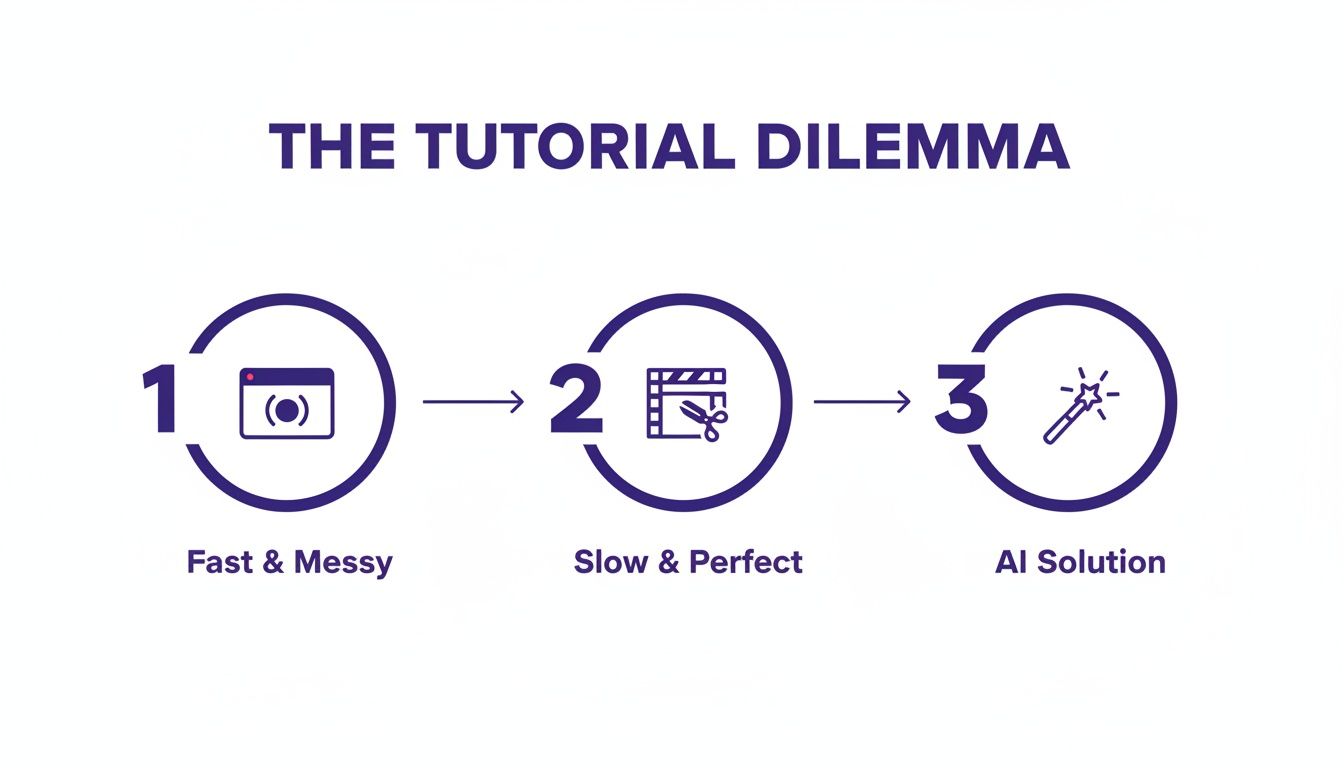
The AI-powered approach carves out a third path. It gives you professional quality without the steep learning curve or the time sink of traditional editing software. This is how you start creating on-brand, high-quality videos with incredible efficiency.
Edit Your Video Like a Word Doc
Once the AI works its magic, you’re left with a clean transcript that’s perfectly synced to your on-screen actions. And this is where the entire workflow flips on its head. Instead of painstakingly trimming clips on a timeline, you just edit the text.
Editing your video becomes as simple as editing a document. If you want to change what’s said, you just type it. If you want to remove a section, you just delete the text. This script-driven approach is the heart of making AI videos efficiently. This simple shift eliminates the most frustrating parts of video editing. Think about how it solves these common problems:
- Fixing a Mistake: Said the wrong thing? No problem. Just find the word in the script and correct it.
- Adding a Detail: Realize you forgot to mention something important? Type the new sentence right where it needs to go.
- Reordering Your Flow: Want to explain step three before step two? Just cut and paste the paragraphs, and the video clips will follow suit.
It’s a fundamental change that lets you, the expert, focus on the clarity of your message, not the technical headaches of production. You can see more on how AI scripts transform the editing process and the freedom this gives you.
Crafting a Script That Actually Engages
While the AI handles the grunt work of cleaning up your raw narration, you still play a key role. Your job is to refine that script into a narrative that grabs and holds your viewer’s attention. A solid script is everything.
A clear, well-paced script is the foundation for any tutorial that people will actually watch to the end. For a deeper dive, there are some great resources on how to write a script for YouTube videos that apply perfectly here. By focusing on the script first, you’re ensuring the final video isn’t just polished—it’s powerful.
Generating a Flawless AI Voiceover Instantly
Now that your script is clean and tight, it’s time for the fun part: creating a professional voiceover without ever touching a microphone. Forget about soundproofing, expensive gear, or doing endless takes. Modern AI lets you generate a perfect, studio-quality narration directly from your script.
This kind of power is exactly why AI video creation is blowing up. The global AI video generator market is projected to skyrocket from USD 788.5 million in 2025 to a massive USD 3,441.6 million by 2033. Large companies are driving this wave, making up 62.2% of the market in 2025 as they adopt these tools to create content way more efficiently. Grandview Research has some fascinating data on this market’s growth if you want to dig deeper.
The Power of Text-Driven Audio
Here’s where the real magic happens. In this workflow, your script is your voiceover. When you change your text—fix a typo, add a new thought, cut a whole paragraph—the AI voiceover instantly regenerates to match. It truly feels like you’re just editing a document, but your audio and video are snapping into place in the background.
This completely solves one of the most agonizing parts of traditional video editing. Remember having to re-record a line of narration? You’d have to get the new audio file, slice it into the timeline, and then spend ages nudging all the video clips around to sync up with the new timing. It was a nightmare.
Now, all of that is gone. Deleting a sentence in the script automatically removes the corresponding audio and tightens the video timeline right along with it. This seamless link between text and sound is what makes everything so fast. Once you’ve nailed your script, you can even explore other ways for how to turn text into video online with different tools.
Go Global with AI Voices in Any Language
One of the biggest game-changers with AI voice generation is localization. In the past, creating content for a global audience was a huge, expensive project. You needed professional translators and native voice actors for every single language.
AI-powered platforms have turned this on its head. With a library of incredibly lifelike AI voices in over 30 languages, you can translate your script and generate a brand-new, native-sounding voiceover in just a few minutes.
It’s more than just a simple audio swap, though. Features like AutoRetime intelligently adjust your scene timings, captions, and on-screen graphics to match the pacing and cadence of the new language. A task that used to take a video editor days of painstaking work can now be done with a click. This lets you produce localized versions of your tutorials and demos at a tiny fraction of the old cost and time. You can check out the range of AI voices available for your projects to hear just how natural they sound. Suddenly, creating accessible onboarding guides, support videos, and product demos for every market is not just possible, but easy.
Now that you have a clean script and a perfect AI voiceover, it’s time to make your video visually pop. A great tutorial doesn’t just show the steps; it guides the viewer’s eye, keeps them focused, and makes complex actions easy to follow. This is where AI-driven visual effects can really shine, turning a basic screen recording into a polished, professional guide.
The beauty of this approach is that you can add all these powerful enhancements after you’ve finished recording. You don’t have to get everything perfect in one take. Ever wished you could go back and zoom in on a tiny button or blur out a password you accidentally left on screen? Now you can, without wrestling with a complicated timeline editor.
Taking Control of Your Cursor After the Fact
One of my favorite features in modern AI video tools is the intelligent cursor tracking. This technology essentially treats your mouse movements as a separate layer from the screen recording, which means you can go back and change them later with a few simple clicks.
Let’s say you just recorded a 10-minute product demo. Your cursor movements were a bit jittery, and at one point, you circled a key feature a little too quickly. In the old days, you’d have no choice but to re-record that whole section. Not anymore. Now, you can apply effects directly to the cursor’s path itself.
- Smooth out jerky movements to create a confident, smooth glide across the screen.
- Add a highlight or halo around the cursor so it’s impossible to lose track of.
- Resize the cursor—make it bigger for emphasis or smaller when it’s not the main focus.
This kind of control is a huge deal. It means you’re directing your viewer’s attention exactly where it needs to be, cutting out visual clutter and making your instructions crystal clear.
Drawing the Eye with Smart Zooms and Effects
Beyond just the cursor, AI tools give you a whole suite of “smart” effects that you can apply without a steep learning curve. These effects are often context-aware, which makes highlighting important information ridiculously fast.
A classic example is the smart zoom. Instead of painstakingly setting keyframes in a traditional editor like Premiere Pro to animate a zoom, you just select an area on the screen. The AI handles the rest, creating a smooth pan and zoom to that spot, holding it for just the right amount of time, and then smoothly zooming back out.
The real win here is creating visually dynamic tutorials without all the typical production headaches. You’re applying powerful effects with simple clicks, which means any subject matter expert can make a video that looks like a professional editor worked on it. Here are a few other incredibly useful effects you can apply in seconds:
- Blur Sensitive Information: Accidentally flash a customer’s email or an internal API key? Just draw a box over it, and the blur effect will redact it for the entire time it’s on screen.
- Use Custom Backgrounds: If your desktop was messy during the recording, you can instantly replace it with a clean, on-brand background image for a much more polished look.
- Add Shadows and Outlines: Make specific windows or UI elements stand out by adding a subtle shadow or outline. It’s a simple trick that adds a ton of depth and focus.
Learning how to combine these tools to build a signature look is key. You can find more tips on developing a unique video style with these AI-powered features to ensure all your tutorials have a consistent, recognizable brand identity. By using these tools, you stop being just a screen recorder and become a true director of the viewer’s experience.
Traditional vs AI-Powered Video Editing Workflow
To really appreciate the difference, let’s compare the old way of doing things with this new, AI-driven approach. The table below breaks down how much simpler common editing tasks become.
| Task | Traditional Editing (e.g., Premiere Pro, Camtasia) | AI-Powered Editing (e.g., Tutorial AI) |
|---|---|---|
| Correcting Mistakes | Find the mistake on the timeline, slice the clip, record a patch, and splice it in. | Edit the text transcript to remove the mistake; the video and audio update automatically. |
| Adding a Zoom Effect | Manually set start and end keyframes for position and scale. Adjust easing for smoothness. | Select an area on the screen. The AI creates a smooth pan and zoom automatically. |
| Fixing Cursor Motion | Impossible. The cursor is baked into the video. The only option is to re-record the segment. | Apply a "smooth motion" effect to the cursor path. Resize or add a highlight post-recording. |
| Updating Content | Re-record the entire section, re-edit, and re-export the whole video. | Edit the script, regenerate the AI voice for that section, and the video updates instantly. |
| Localizing to Spanish | Hire a translator, a voice actor, re-record audio, and painstakingly re-time all video clips. | One-click translation for script and voiceover. Auto-Retime adjusts video timing to match the new audio. |
As you can see, the AI-powered workflow eliminates many of the most time-consuming and technically demanding parts of video editing. It shifts the focus from mastering complex software to simply refining your content.
Applying Your Brand and Publishing Your Video
You’ve done the heavy lifting—the script is tight, the voiceover sounds human, and your visuals are on point. Now it’s time for the final touches that transform your project into a professional, on-brand asset ready to share with the world. This last mile is all about making the video undeniably yours and getting it in front of your audience.
Maintaining Brand Consistency with Ease
For any team, keeping a consistent look across all content is a constant challenge. This is where a Brand Kit becomes your best friend. Instead of hunting for the right logo file or guessing hex codes for every single video, you set everything up once.
From there, you can apply your entire brand identity with just a click. This is a game-changer for ensuring every tutorial, demo, and knowledge base video feels cohesive and professional.
- Logos and Watermarks: Drop your company logo on the screen as a persistent watermark. Simple.
- Custom Fonts: Upload your brand’s official fonts to keep all on-screen text perfectly aligned with your style guide.
- Color Schemes: Lock in your primary and secondary color palettes so backgrounds and highlights are always on-brand.
Centralizing these assets removes the guesswork. It ensures every video reinforces your brand, which builds trust and gives your tutorials that polished, authoritative feel.
Streamlining Team Collaboration and Feedback
Let’s be real—creating a great tutorial is almost never a solo mission. You’ll likely need a thumbs-up from a product manager, a quick review from a support lead, or a technical check from an engineer. This is where modern AI platforms really shine, offering shared workspaces built for teamwork.
Forget the old routine of exporting a draft, emailing it around, and trying to decipher feedback from a dozen different threads. Now, you can just invite stakeholders to leave time-stamped comments directly on the video project. The feedback loop becomes faster, clearer, and way more efficient.
This is a massive improvement over the siloed workflows of traditional video editing. It makes version control a breeze and ensures all the key players have their say before the video goes live. This collaborative approach taps into a huge market shift. The demand for AI-assisted content tools is exploding, with the AI-generated short-form video script market projected to grow from USD 2.11 billion in 2025 to USD 2.74 billion in 2026. This surge, particularly in large companies, highlights the need for tools that can produce high-quality videos at scale. You can dig deeper into the research on this specialized market growth.
Publishing and Sharing Your Final Video
With your video branded, reviewed, and ready to go, the final step is getting it out there. Today’s platforms give you plenty of flexible options.
You can easily export your video in crisp, high-resolution formats like 4K. For maximum efficiency, look for one-click publishing integrations. These let you send your final video directly to platforms like YouTube or Vimeo without the tedious step of downloading and re-uploading massive files.
And for internal tutorials, embeddable players are indispensable. You can drop your video right into a support article, an employee onboarding module, or your internal wiki. This puts the information exactly where your team or customers need it most, creating a seamless learning experience.
7. Getting Your Video in Front of the Right People
You’ve done the hard work—you’ve planned, recorded, and polished your video using AI. That’s a massive accomplishment, but the job isn’t quite finished. Now, it’s time to make sure people actually see it. A fantastic video that nobody watches doesn’t help anyone.
This final stretch is all about thinking like your audience. How do they find new videos? What makes them click play? A few smart moves here can be the difference between a video that lands with a thud and one that takes off.
It starts with the basics: crafting a title and description that search engines and humans can both understand. Your title needs to be a clear, compelling promise of the value inside. The description is your chance to use the keywords your audience is searching for, signaling to platforms like YouTube exactly what your content is about.
Shorter is Almost Always Better
Let’s be honest, attention spans are shrinking. The era of the 20-minute, rambling tutorial is over. Today, people want quick answers, and your video format should reflect that.
This isn’t just a hunch; the data backs it up. We’re seeing a massive shift toward short-form video as the go-to for both creators and viewers.
- A whopping 71% of marketers say videos between 30 seconds and two minutes perform best.
- On the consumer side, 63% of people prefer short videos when they’re researching a product or trying to learn something new.
If you’re curious about where things are heading, check out the latest video marketing trends reshaping content strategy. The takeaway is clear: get to the point, solve one problem, and do it quickly.
Don’t Overlook Captions
Here’s a pro tip that so many creators miss: use AI-generated captions. Yes, they’re crucial for accessibility, but their impact on keeping viewers engaged is just as powerful.
Think about how you scroll through social media. Most videos autoplay on mute. If someone can’t understand what’s happening in your video without turning on the sound, they’re gone in a heartbeat. They’ll just keep scrolling.
Adding accurate captions makes your video instantly accessible to everyone watching in a quiet office, on public transit, or just browsing with their sound off. It’s a simple addition that can dramatically boost how long people stick around. By nailing your title, keeping things brief, and always including captions, you give your AI-powered video the best possible chance to succeed. This isn’t just about making a video efficiently; it’s about making it effective.
Common Questions About Making AI Videos
As you start exploring this new way of creating tutorial videos, a few questions are bound to pop up. It’s a powerful approach, but it’s totally different from traditional video editing. Let’s tackle some of the most common things people ask when they’re just getting started.
Do I Need Video Editing Experience?
Honestly, no. And that’s a huge relief for most people.
Modern AI video platforms are designed for subject matter experts and educators, not professional video editors. If you know your way around a Google Doc or a Word document, you’ve got all the skills you need. The entire creation process revolves around your script.
You just edit the text, and the AI does the heavy lifting—trimming the video, generating the voiceover, and syncing it all up. Forget about wrestling with a complicated timeline; adding effects like zooms or highlights is as simple as clicking a button.
How Realistic Are the AI Voices?
They’ve gotten incredibly good. The days of robotic, monotone computer voices are long gone. The best tools now offer a massive library of natural-sounding voices with various accents, styles, and tones.
For the kind of clear, professional narration you need in a tutorial or product demo, they are fantastic. They offer a level of consistency that’s hard to match.
Look, an AI voice probably won’t replace a voice actor for a dramatic movie trailer. But for instructional content? The speed and cost savings are unbeatable. The real magic is being able to change one word in your script and instantly regenerate the audio. That’s a workflow improvement you just can’t get with human recording.
Can I Use AI to Edit My Existing Videos?
Yes, and this is an incredibly useful feature that’s becoming more widely available.
Many script-based platforms let you upload your existing videos. The AI will automatically transcribe the audio, giving you a text script that’s perfectly synced to your footage.
From there, you can edit it just like any other project. It’s a game-changer for updating old content. For example, you can:
- Fix Narration Mistakes: Correct a word you misspoke without needing to re-record the whole section.
- Add New Sections: Drop in a new paragraph about a product update and have the AI voice narrate it seamlessly.
- Apply Visual Effects: Add blurs to sensitive information or zooms to highlight key details in your original recording.
This is the perfect way to refresh your entire video library without having to start over from scratch every time something changes.
Ready to transform your screen recordings into polished, on-brand videos in minutes? See how Tutorial AI can help you create professional tutorials, demos, and training content with the power of AI. Start creating for free at /.